 Speaklit
Homework instructions
Turn a wall of assignment text into the actual tasks and due dates.
Don’t need things read out loud? Turn it off, and Speaklit becomes a quick AI that floats over everything you do. Copy any text, press AI, and ask. The answer shows up right on top of your page. No new tab, no pasting into a chatbot.

Now nothing is ever read out loud. Answers just show up as text, like a chat. Want the voice back some day? Flip the switch on again.
Using an AI chatbot means leaving what you’re doing. With Speaklit, the AI is already sitting at the top of your screen.
6 steps, 2 tabs, and you lose your spot.
The answer appears on top of the page, and you never left it.
2 steps, 0 tab switches.
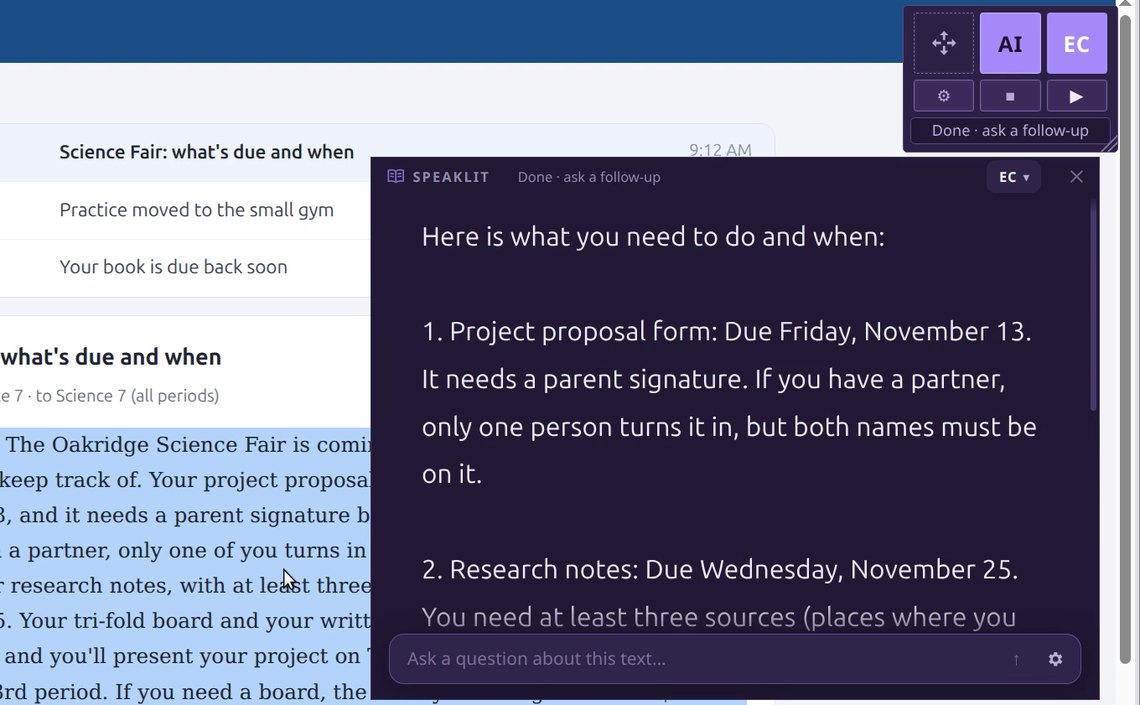
Copy any text and press AI. Speaklit opens with your text and the cursor already in the box, so you just type: “What do I need to do, and by when?”, “What does this word mean?”, “Is this on the test?”
The AI already knows what you copied, so there’s nothing to paste or explain. Keep asking follow-ups like a conversation.
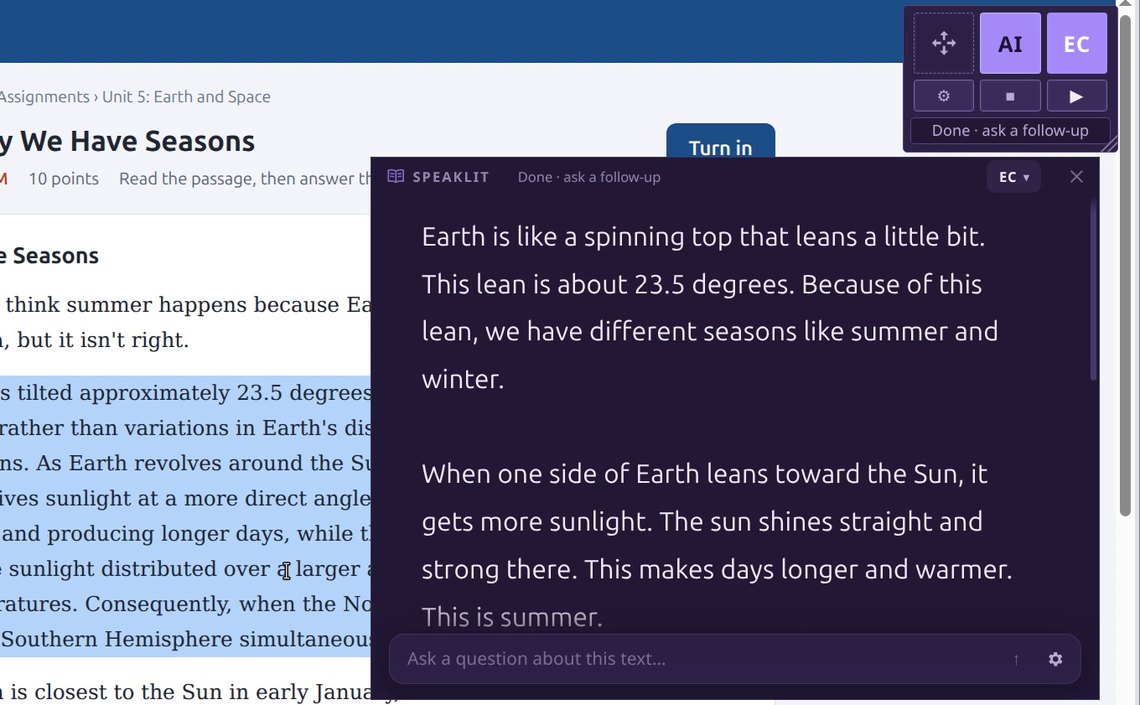
Don’t even want to type? Press EC and pick how: simpler, shorter, as steps, as a quiz. There are 14 ways, and Speaklit remembers your favorite.
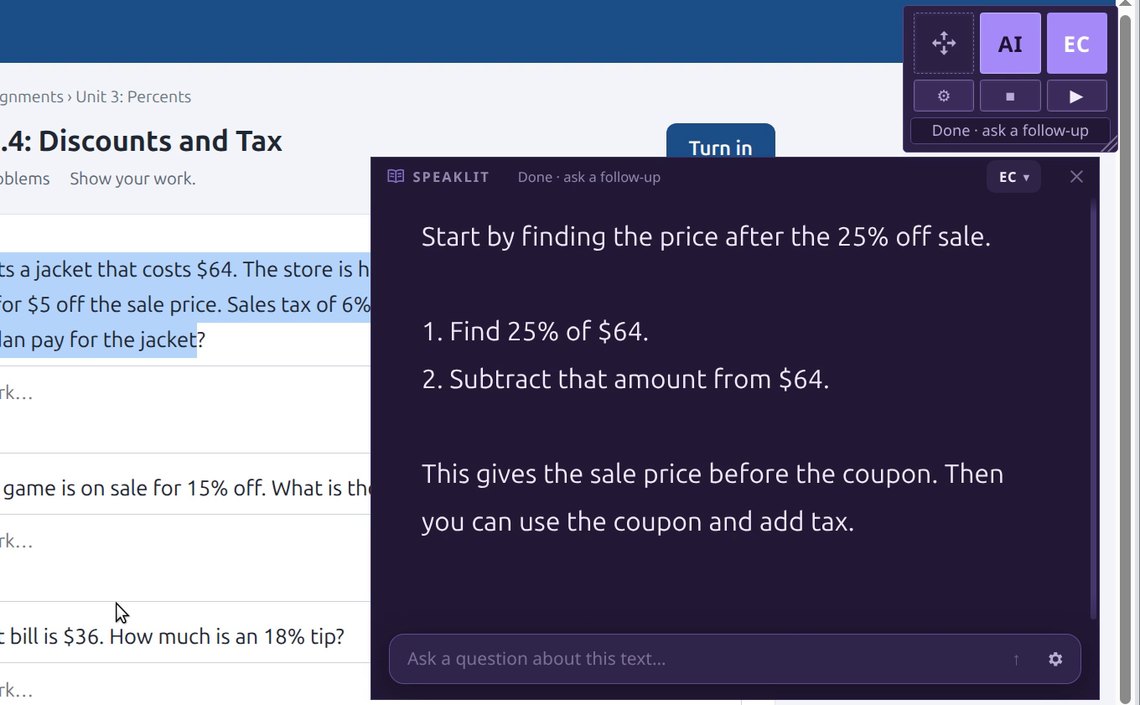
Copy, then press Ctrl + Alt + R (Mac: ⌃ ⌥ R). Speaklit pops up with what you copied, ready for your question.
Close it with the ✕ when you’re done. The bar stays at the top of your screen for next time.
Pick the one that fits what you’re reading. Each is one click.
SummaryA clear summary with the key details.
Short summaryThe main points in a few sentences.
SmoothCleans up messy text so it reads smoothly.
What’s the point?The main point, and what comes next.
One sentenceThe whole thing in one sentence.
Bullet pointsKey points as a quick list.
ExplainWhat it means, in plain words.
Like I’m 5Very simple words and an example.
In depthA thorough explanation with context.
Key termsHard words and what they mean.
What do I do?Tasks, dates and deadlines.
Step by stepBroken into ordered steps.
Quiz meQuestions to check you understood.
Easier to readThe same text, rewritten simply.
Lots of people never use the voice at all. They keep Speaklit at the top of the screen as the fastest way to get help with whatever’s in front of them.
Turn a wall of assignment text into the actual tasks and due dates.
Get what someone actually wants from you, and what to do next.
Understand a dense paragraph in simple words, with an example.
Check you really got it with quick questions about the reading.
The whole story in one line, before you decide to read it all.
Pull out the jargon and what each word means, right on the page.
Shortcut: copy anything and press Ctrl + Alt + R (Mac: ⌃ ⌥ R) to ask about it, or press EC on the bar.
No. Speaklit’s AI is built in. You don’t need any other account or app, and there’s nothing to set up.
Speaklit uses OpenAI’s models through Speaklit’s own server, tuned for explaining and answering questions about what you’re reading.
No. The AI only gets the text you chose, and only when you press EC or ask a question. Nothing else on your screen is sent. See our privacy policy.
No. The text is sent to make the answer and isn’t stored on our servers afterwards. We only count how many AI answers you’ve used, for the plan limits.
Yes. Click ⚙ on the Speaklit bar and turn off Read out loud. The RC button turns into AI and nothing is ever spoken: answers just show up as text. Turn it back on any time.
Yes. The small Speaklit bar floats at the top of your screen over every app, website, PDF and document, so the AI is always one click away. Drag it anywhere you like.
No. AI can make mistakes, so double-check anything important, like due dates, numbers or facts for a test, against the original text.
Yes. The AI remembers the text and your earlier questions, so you can keep the conversation going like you would with a tutor.
Stop switching tabs. Copy, press AI, and keep going.