 Speaklit
 on Linux.
How to download it, open it and use it. Read the steps, or watch the video.
-
1
Download Speaklit
Click Download for Linux. The file is called Speaklit-…AppImage and it’s about 120 MB, so it takes a few seconds to a minute. It works on most 64-bit Linux desktops: Ubuntu, Debian, Mint, Fedora and others.
On Ubuntu or Debian you can get the .deb instead, which installs Speaklit like any other app (see step 3).
-
2
Find it in your Files app
Minimize your browser and open your Files app. Go to Downloads, right-click the Speaklit file and choose Properties.
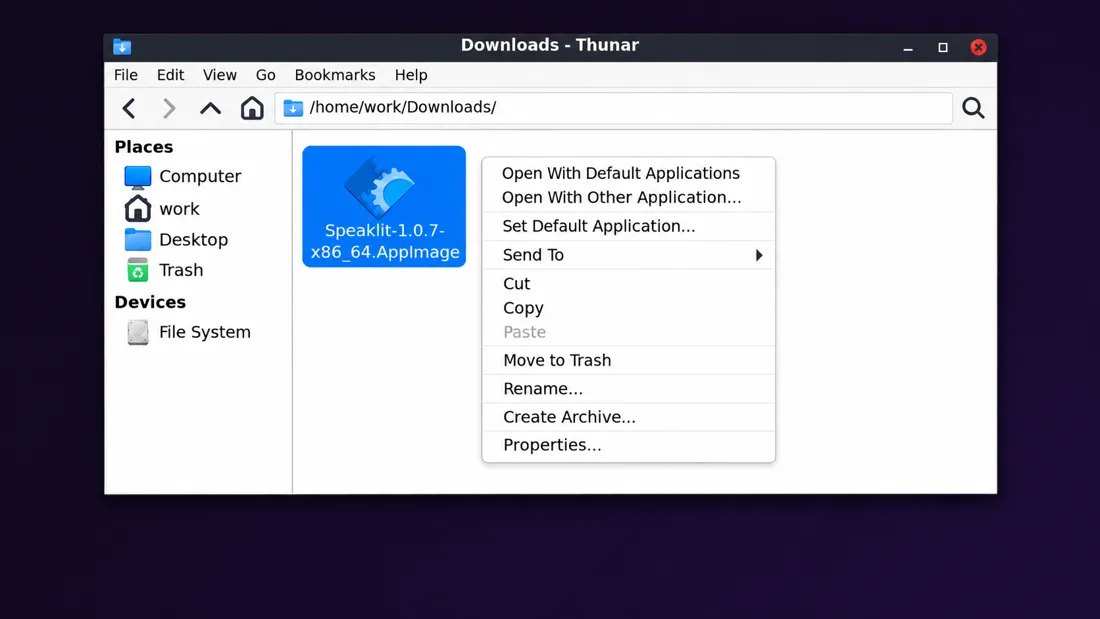
Right-click the file → Properties -
3
Let it run, then open it
Linux doesn’t let a downloaded file run until you say so. In Properties, tick the box that lets it run. Its name depends on your desktop:
- Xfce, Mint and others: on the Permissions tab, Allow this file to run as a program.
- Ubuntu (GNOME): switch on Executable as Program.
Click Close, then double-click the file. Speaklit opens right away. There’s nothing else to install, and it adds a Speaklit icon to your desktop and apps menu for next time.
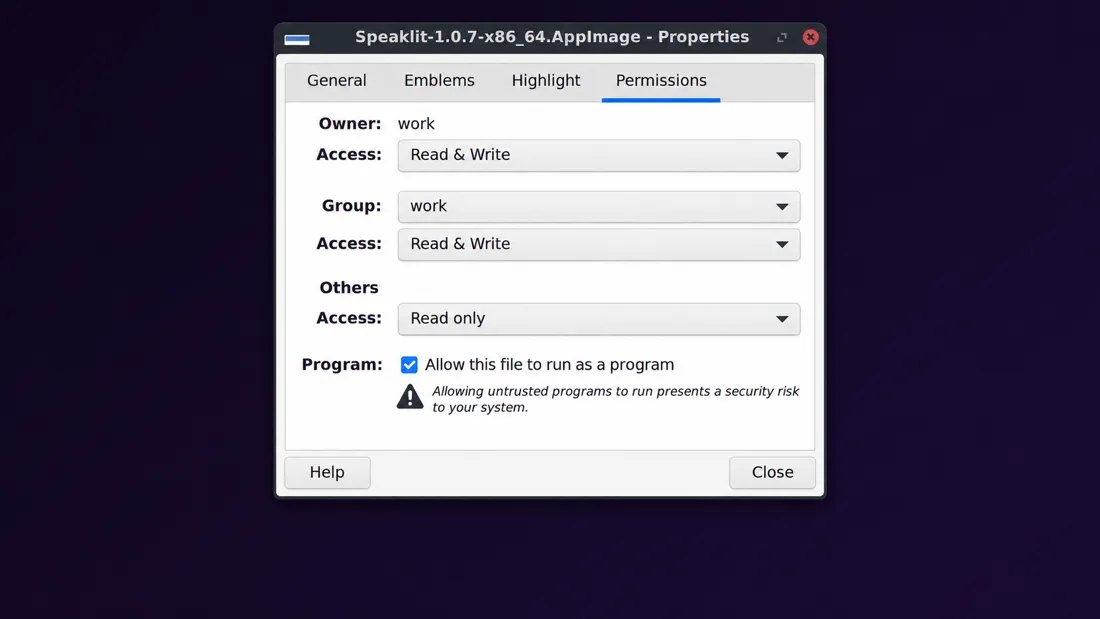
1. Tick Allow this file to run as a program 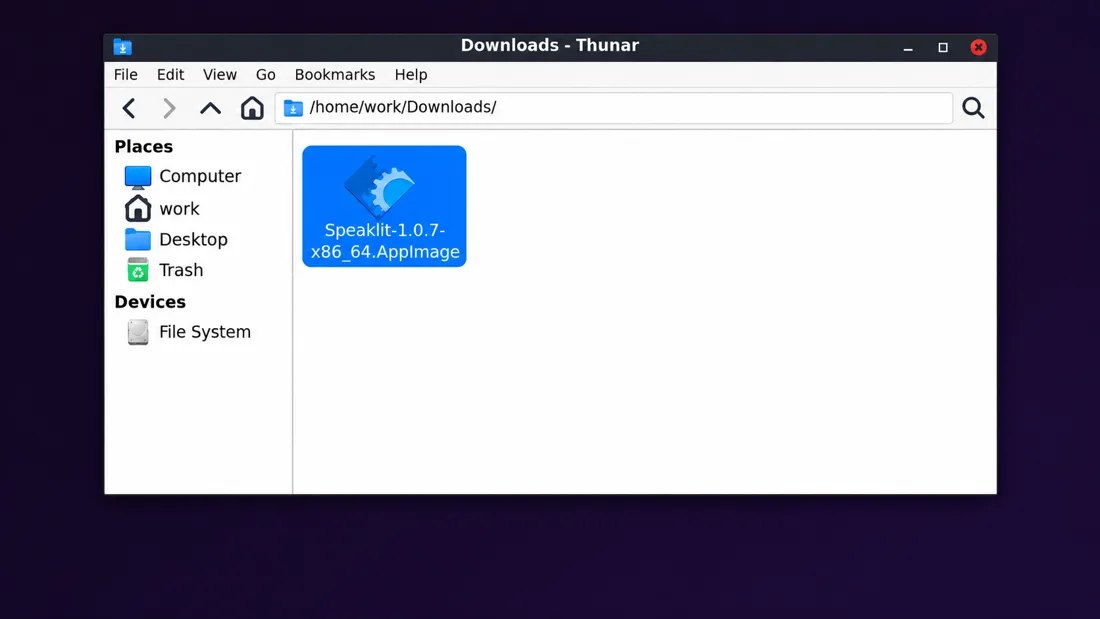
2. Double-click the file Why? Linux treats every downloaded file as plain data until you mark it as a program. It’s a safety switch, and you only flip it once.
Prefer a terminal?
Got the .deb? Open it to install it with your app store, or run Then open Speaklit from your apps.
-
4
Sign in on the Speaklit bar
When Speaklit opens, the Speaklit bar appears in the top-right corner of your screen with a small sign-in box under its buttons.
Sign in with browser is the quickest way: it opens your browser, and if you’re already signed in to speaklit.ai, you’re done. If not, sign in or make your free account there.
Or make your account right in the box: type your name, email and a password, then click Create account. Already have one? Click Sign in.
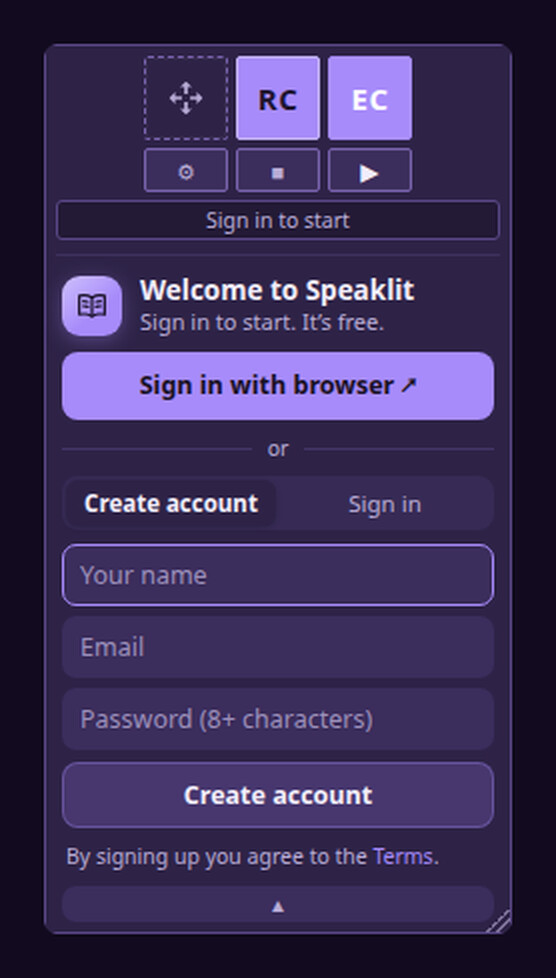
The sign-in box on the Speaklit bar That’s it. Speaklit starts by itself whenever you turn on your computer. Change your voice, speed and colors any time with ⚙.
-
5
Use it on anything you read
The Speaklit bar floats on top of your screen, over any website, PDF, document or app. Drag it by the ✥ handle to move it.
RCRead. Copy some text (Ctrl+C), then click RC. Speaklit reads it out loud and highlights each word. Click the words to pause.
ECExplain. Copy some hard text, then click EC. Speaklit explains it in plain words. Pick how it explains (short, simple, like I’m 5, quiz me…) from the menu.
?Ask. Type a question in the box under the text, and Speaklit answers and reads the answer to you.
⚙Settings. Change your voice, speed, text size and colors.
2×Faster. Hold the right side of the reader to listen at double speed. Let go to go back.
-
6
Open and close Speaklit
Open it: Speaklit starts by itself when you turn on your computer. If you closed it, double-click the Speaklit icon on your desktop, or find Speaklit in your apps menu. You don’t need to open the downloaded file again.
Close it: move your mouse to the very top-right corner of the Speaklit bar. A small red ✕ appears. Click it, then click Quit.
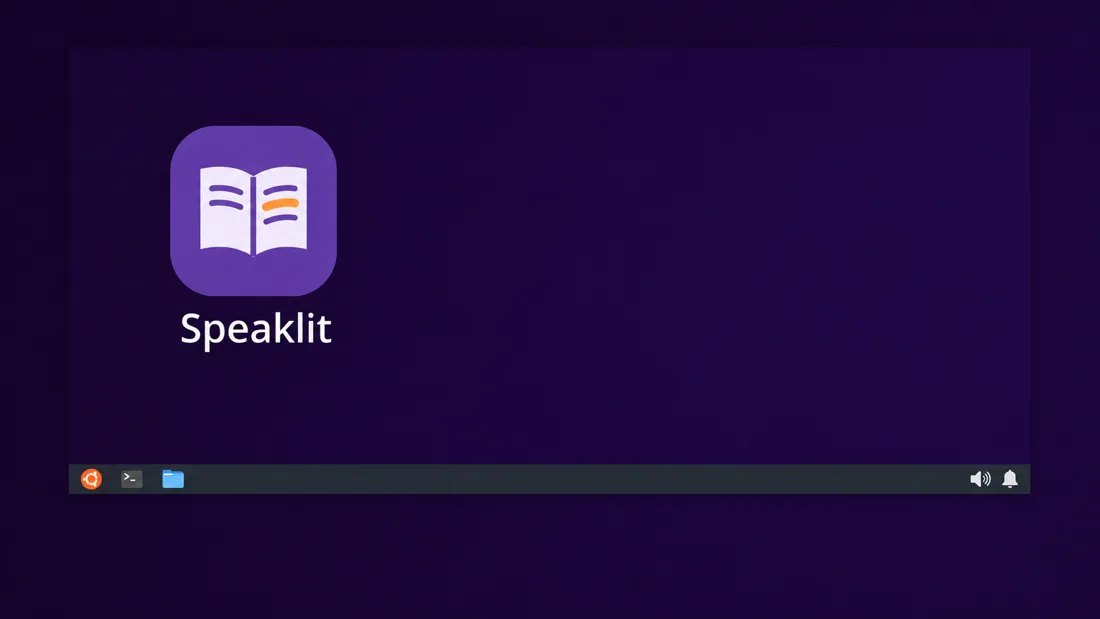
Next time: double-click the Speaklit icon 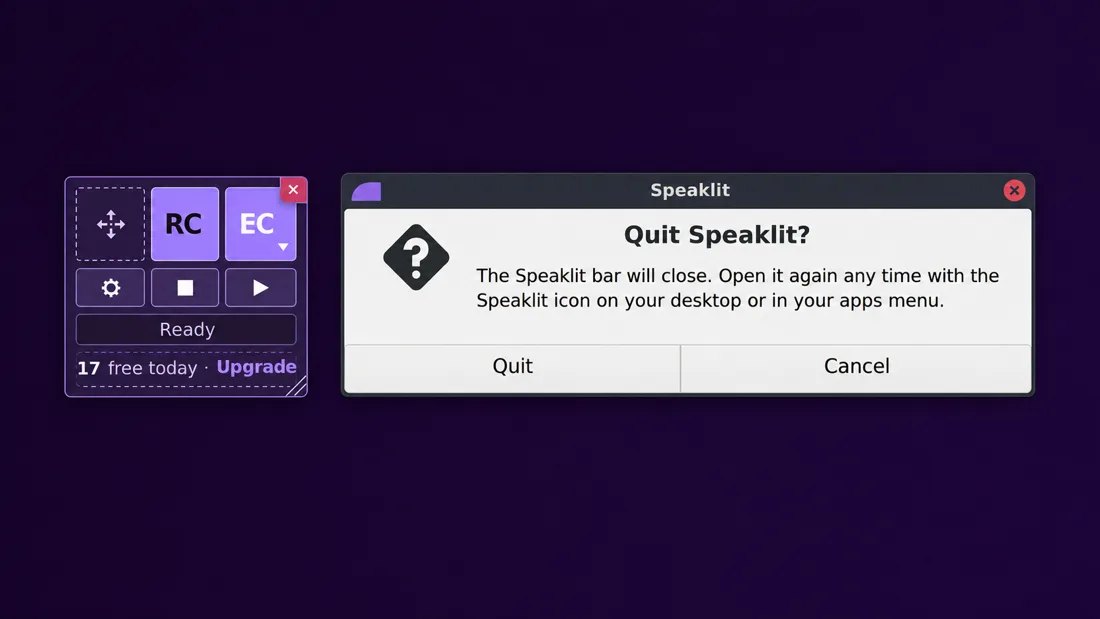
To quit: the ✕ in the bar’s corner → Quit -
7
Shortcuts
Ctrl+Alt+R Read what you copied Ctrl+Alt+S Read what you highlighted (no need to copy) Ctrl+Alt+P Pause or keep reading Ctrl+Alt+X Stop On some Wayland desktops these only work while a Speaklit window is in front. The RC and EC buttons always work.
-
?
If something isn’t right
- Nothing happens when I double-click: make sure you turned on the run-as-a-program switch in step 3. Some file managers ask whether to Run or Display it: pick Run.
- The bar is gone: double-click the Speaklit file again (or open Speaklit from your apps if you used the .deb).
- Moving the file: Speaklit starts with your computer from wherever the file is. If you move it, open it once from its new place.
- A shortcut does nothing: another app may be using it. The RC and EC buttons always work.
- Out of free uses: the free plan has 20 uses a day (5 of them AI). They come back tomorrow, or see plans.
- Uninstall: delete the Speaklit file and ~/.config/autostart/speaklit.desktop. With the .deb:
- Still stuck? Email [email protected].