 Speaklit
 on your Mac.
How to download it, open it and use it. Read the steps, or watch the video.
-
1
Download Speaklit
Click Download for Mac. The file is called Speaklit-….dmg and it’s about 225 MB. If Safari asks whether to allow downloads from speaklit.ai, click Allow. One download works on every Mac from 2020 on (Apple silicon and Intel), running macOS 11 or newer.
-
2
Move it to Applications
Open the file you downloaded (click it in your browser’s downloads, or find it in Downloads). A window opens: drag the Speaklit icon onto the Applications folder.
-
3
Open it the first time
Double-click Speaklit in your Applications folder. The first time, your Mac stops it with “Speaklit” Not Opened (“Apple could not verify…”). There’s no Open button in that box, so you allow it in System Settings, once:
- Click Done.
- Open System Settings (Apple menu) → Privacy & Security. Scroll down to Security. Next to “Speaklit” was blocked to protect your Mac, click Open Anyway.
- A box asks Open “Speaklit”? Click Open Anyway again.
- Type your Mac password (the one you use to log in) and click OK. Speaklit opens.
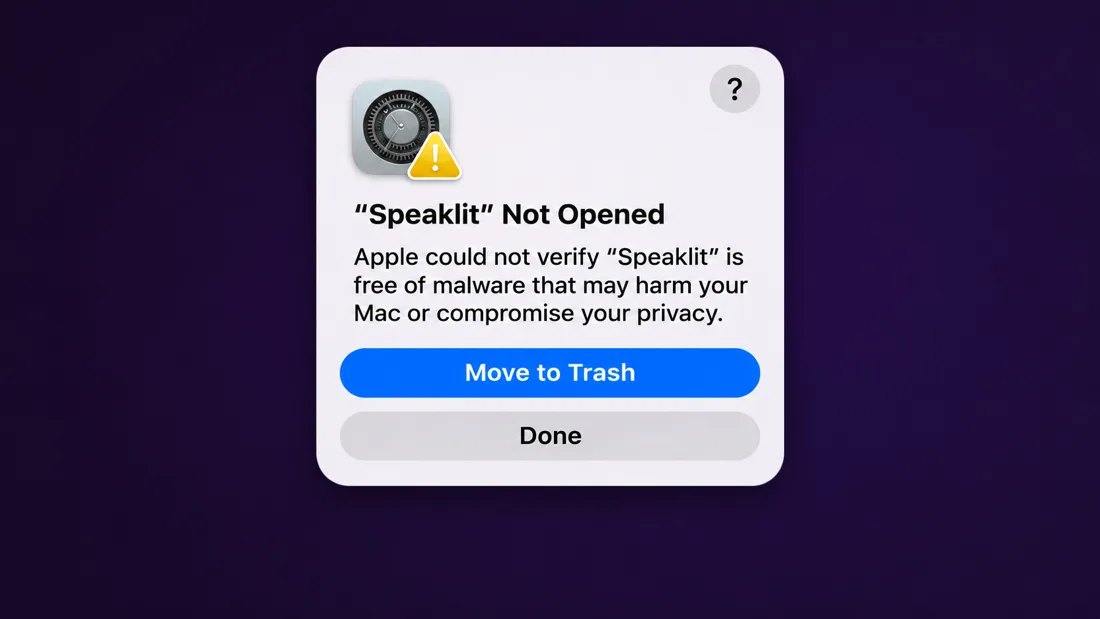
1. Click Done 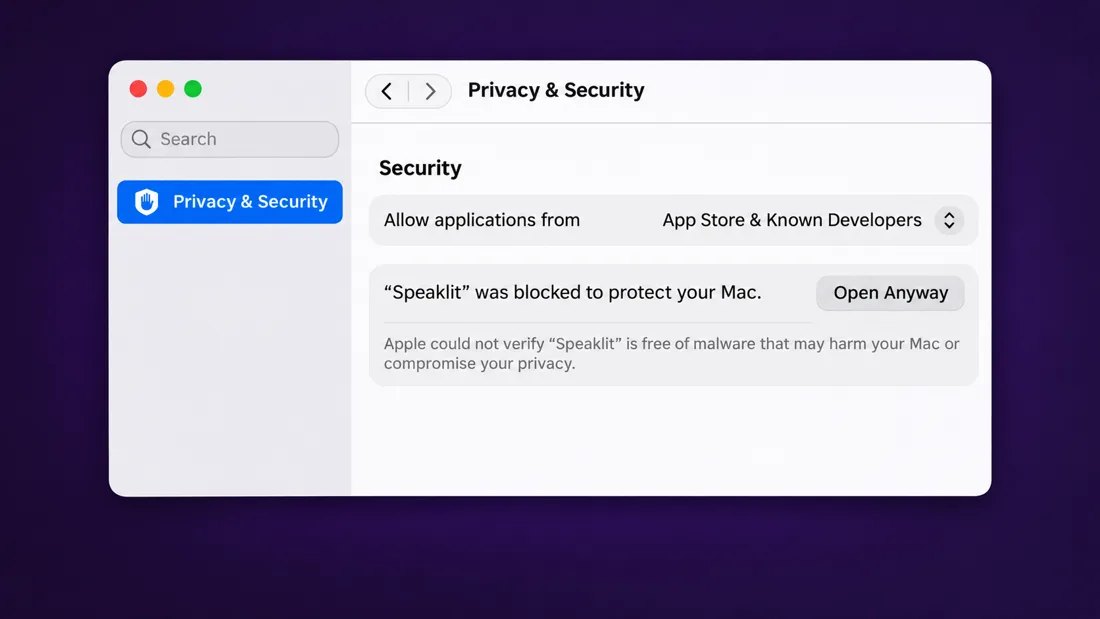
2. Privacy & Security → Open Anyway 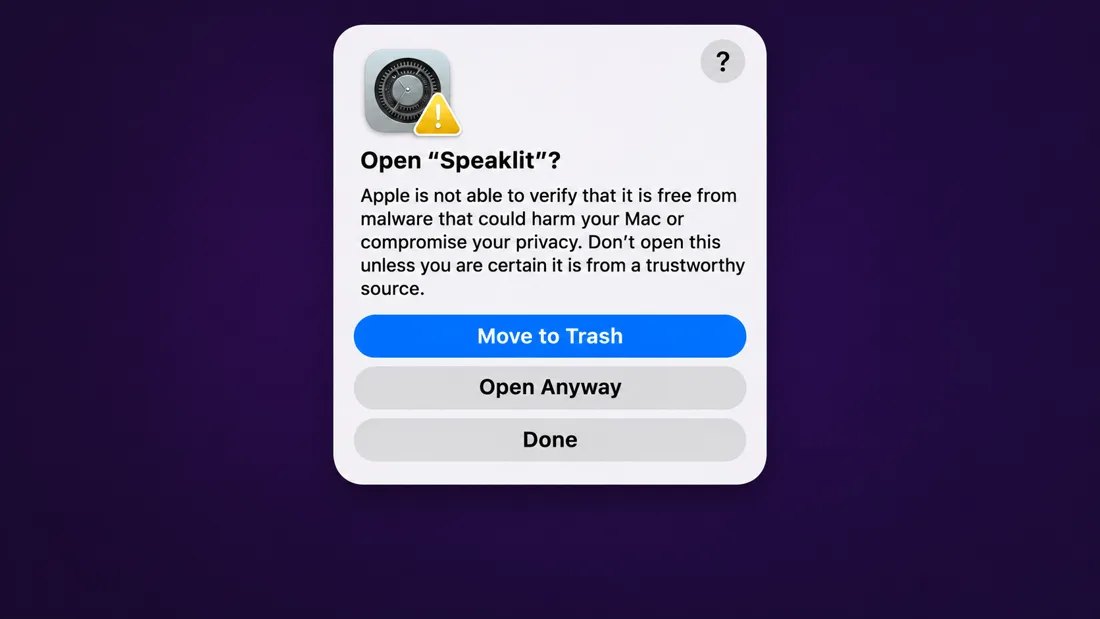
3. Open Anyway again 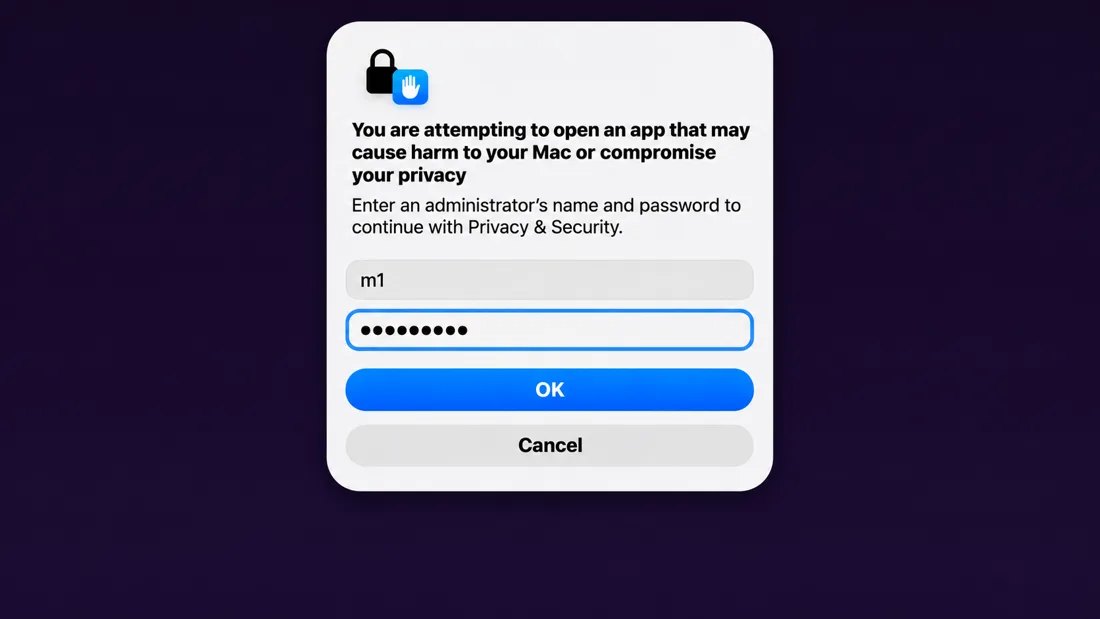
4. Your Mac password → OK Why? Apple asks app makers to send each version to Apple for checking. Speaklit hasn’t done that yet, so your Mac asks you to allow it yourself. You only do this once: after that Speaklit opens normally.
-
4
Create your free account
Speaklit opens a welcome window. Click Get started, then make your account with your email (or click I already have an account).
Then pick what you’ll use it for, choose your voice and your colors, and try it once. It takes about a minute. After that, Speaklit starts by itself when you log in to your Mac.
-
5
Use it on anything you read
The Speaklit bar floats on top of your screen, over any website, PDF, document or app, even full-screen ones. Drag it by the ✥ handle to move it.
RCRead. Copy some text (⌘+C), then click RC. Speaklit reads it out loud and highlights each word. Click the words to pause.
ECExplain. Copy some hard text, then click EC and pick how it explains (short, simple, like I’m 5, quiz me…).
?Ask. Type a question in the box under the text, and Speaklit answers and reads the answer to you.
⚙Settings. Change your voice, speed, text size and colors.
2×Faster. Hold the right side of the reader to listen at double speed. Let go to go back.
-
6
Open and close Speaklit
Open it: Speaklit starts by itself when you log in to your Mac. If you closed it, open Speaklit from your Applications folder (or Launchpad). You can delete the downloaded .dmg file.
Close it: move your mouse to the very top-right corner of the Speaklit bar. A small red ✕ appears. Click it, then click Quit.
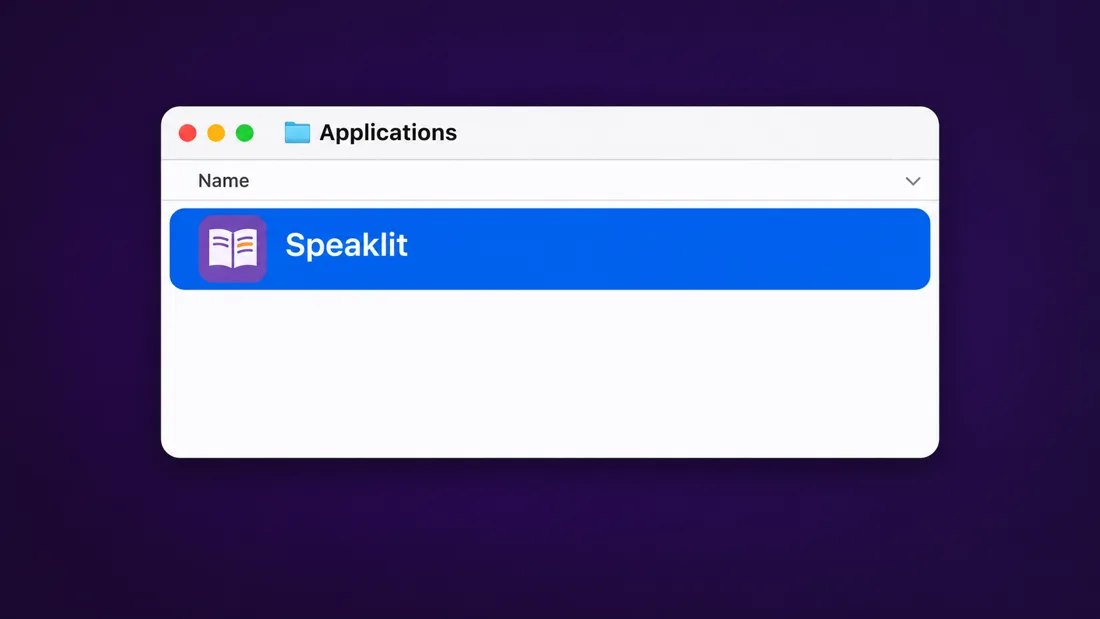
Next time: Applications → Speaklit 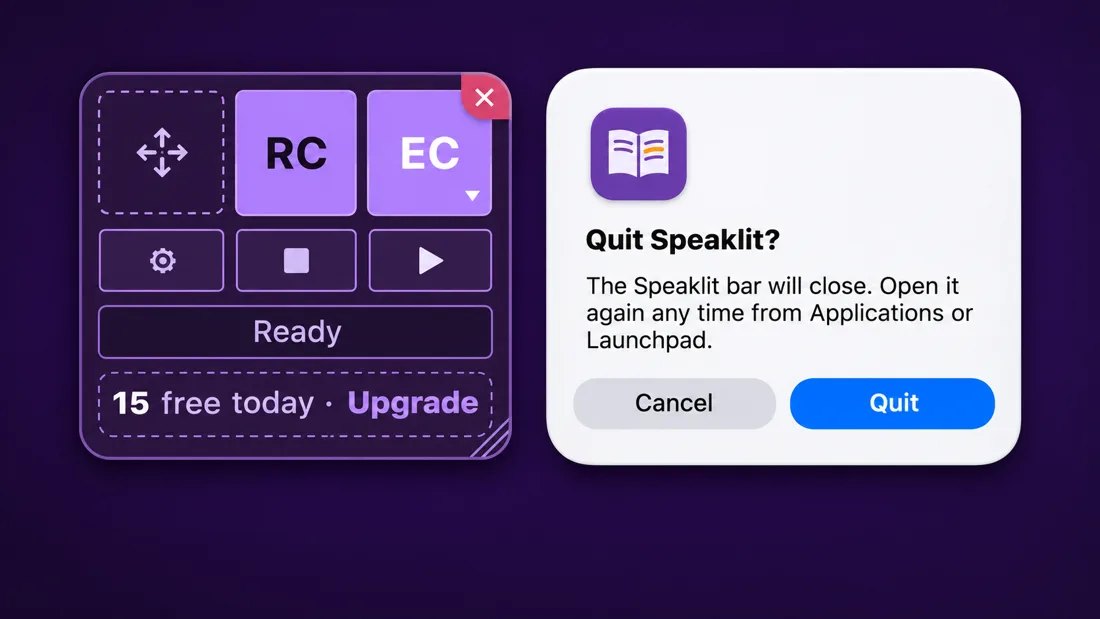
To quit: the ✕ in the bar’s corner → Quit -
7
Shortcuts
⌃⌥R Read what you copied (Control + Option + R) ⌃⌥S Read what you highlighted (no need to copy) ⌃⌥P Pause or keep reading ⌃⌥X Stop The first time you use ⌃⌥S, your Mac asks to let Speaklit use Accessibility (so it can copy what you highlighted). Click Open System Settings and turn on Speaklit. Everything else works without it.
-
?
If something isn’t right
- “Speaklit is damaged and can’t be opened”: download it again from this page (the download didn’t finish), then follow step 3.
- The bar is gone: click Speaklit in your Dock, or open it from Applications.
- ⌃⌥S reads the clipboard instead: turn on Speaklit in System Settings → Privacy & Security → Accessibility.
- Out of free uses: the free plan has 20 uses a day (5 of them AI). They come back tomorrow, or see plans.
- Uninstall: quit Speaklit, then drag it from Applications to the Trash.
- Still stuck? Email [email protected].